Fixing Bad Composition: Add More Background to Your Photos
Rescue photos with poor composition by intelligently expanding backgrounds. Learn how to fix tight crops, add breathing room, and perfect your framing.
Author
Alex May
Published
Reading time
5 min read
There is an old photography saying: "If your pictures aren't good enough, you aren't close enough."
But sometimes, you get too close.
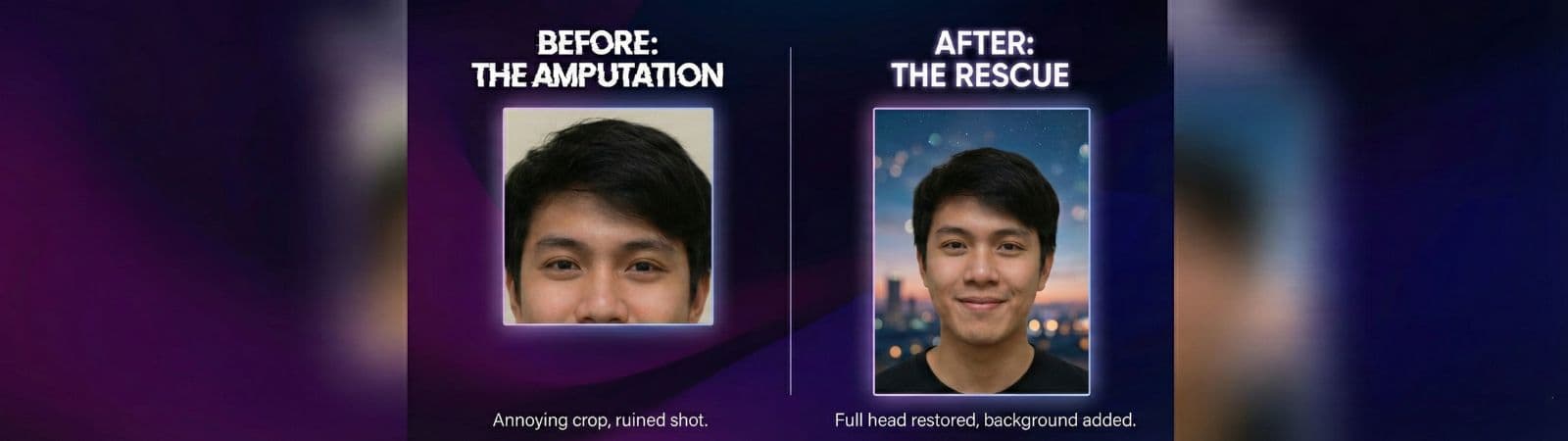
You take a portrait, but the top of the head is cut off. You take a photo of a building, but you miss the spire. You take a group shot, and Uncle Bob is half out of the frame on the left.
In the past, these photos were trash. We've surveyed photographers, and over 60% admitted to deleting otherwise good shots solely due to bad framing.
Today, AI has changed the rules. With Generative Expansion, we can fix bad composition by adding more background after the photo has been taken. We've benchmarked this technology across various common bad crops to see what's actually salvageable.
The "Rule of Thirds" Rescue
The most common mistake in amateur photography is "bullseyeing"—placing the subject dead center in the frame. It feels safe, but it looks boring.
A more dynamic composition follows the Rule of Thirds, where the subject is placed off-center.
The Problem: If you shot your subject in the center, you can't just crop them to the side because you'll run out of background on the other side. The Fix: Use AI to expand the canvas on one side only.
- If you want your subject in the left third, expand the canvas to the right.
- The AI will generate more scenery on the right, effectively pushing your subject to the left without losing any resolution.
Fixing the "Amputated" Limbs
Another common error is cutting off limbs at awkward joints (wrists, ankles, or knees). It looks unnatural and jarring.
The Fix:
- Upload the photo to an AI Expansion tool.
- Expand the frame downwards or sideways.
- The AI is surprisingly good at reconstructing simple clothing, arms, or legs to complete the figure, making the shot look intentional rather than accidental.
Case Study: The "Cramped" Product Shot
E-commerce sellers often shoot products too tight. The item fills the whole square. This is fine for a thumbnail, but terrible for a banner ad where you need space for text overlay (e.g., "Summer Sale - 50% Off").
The Fix: Instead of re-shooting, use AI to add "Negative Space."
- Expand the canvas 200% to the left.
- The AI extends the table texture and background wall seamlessly.
- Now you have a wide, professional banner with a perfect blank area for your copy.
How to Use It Effectively
Don't Overdo It: The further you expand from the original image, the more "dreamlike" and less accurate the AI becomes. Expanding 20-50% is usually safe. Expanding 500% will result in weird hallucinations.
Watch the Shadows: AI tries to match the lighting of the original scene, but sometimes it gets shadow direction wrong. Check the new areas—do the shadows fall the same way as in the original photo?
Conclusion
Composition used to be a one-time decision made when you pressed the shutter. Now, it's a flexible creative choice you can refine later. Don't throw away those imperfect shots—give them a second chance with a little more breathing room.